
Sitemap audit
A Sitemap audit crawls a live website and turns it into a report: every page URL the crawl met, the status it answered with, and the SEO signals found on it. Run the audit again later and the report shows what changed — pages that appeared, pages that are gone, and pages that started redirecting.
An audit is a project of its own. It is not a visual sitemap: there is no artboard, no blocks and no editing. To bring a website onto an artboard instead, use Import website.

Start an audit
- On the dashboard, click Sitemap audit.
-
Enter the address of the website and click Start audit. The address may be typed without
https://— it is filled in for you.
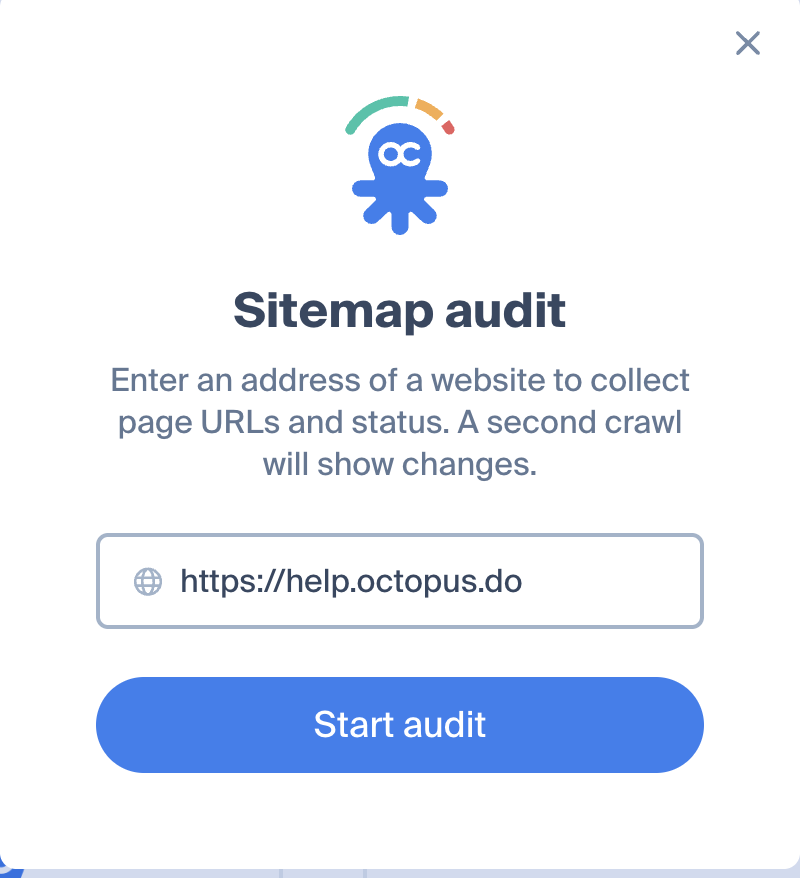
- Wait for the crawl to finish. It runs in this browser window, so keep the window open until it is done.
While the crawl runs you can Stop it, which keeps the pages found so far and builds the report from them, or cancel it, which throws the run away. When the crawl finishes, the report opens at a link of its own and appears on your dashboard next to your other projects — so it takes up one project slot on your plan.
The crawl covers up to 300 pages on the Free plan and up to 3000 pages on Pro and Team. The limit follows the plan of whoever owns the report.
What the numbers mean
The cards at the top of the report count the pages of the latest crawl.
- Total pages — every URL in the crawl.
- Indexed — the pages that belong in
sitemap.xml: fetched successfully, not markednoindex, not redirecting anywhere, and with a canonical that points at the page itself. This one overlaps the three below it. - Skipped — URLs the crawl did not read: blocked by
robots.txtor anofollowlink, redirecting to another address, or turned away by the site (401, 403, 408, 429).
The bar underneath splits the same pages by health:
- Healthy — the page answered, and it has a title and an H1.
- Warning — the page answered but its title or H1 is missing, or it replied with a 3xx status without naming where it goes.
- Broken — the page answered with 4xx or 5xx, or did not answer at all.
A missing meta description is reported on the page as a tag, but it never turns a page into a warning: it is missing on most of the web, and counting it would colour a whole report yellow. A page marked noindex is never warned about a missing title or H1 either — it has asked to stay out of search.
Tags on a page

Every row in the list carries the tags that explain it.
- Broken: 404 — the page failed, with the status it failed with.
- Blocked: 403 — the site turned the crawler away. This says nothing about what a visitor sees; a firewall or a rate limit does it routinely.
- Not crawled: robots.txt, Not crawled: nofollow — the site asked crawlers to stay out of this URL.
- Redirect — the URL now sends visitors somewhere else. Where it goes is in the CSV export.
- Noindex — the page asks search engines not to index it.
- No title, Missing H1, No description — the page is missing that piece of its SEO meta.
- New, Removed — the page appeared, or disappeared, since the previous crawl.
Reading the list
Click a card to list only its pages; click Total pages to go back to all of them. Above the list you can search the URLs and sort them:
- Hierarchy — by depth and address, the way the site is laid out.
- Changes first — new, removed and redirecting pages at the top.
- Problems first — broken pages first, then warnings.
The section, the search and the sort are all kept in the address bar, so a link to a report opens on exactly the rows you were looking at.
Compare two crawls
From the second crawl onwards, a card shows a chip with the difference: +12 , -3 . Hover it to see which two crawls are being compared. Click it to list only what changed in that section — that is also the only view where pages the site has lost appear, tagged Removed.
A chip that reads +0 means the count stood still but pages were swapped: as many arrived as went away.
Crawl the site again

Press the refresh button in the top bar to crawl the site right now. As with the first crawl, the run happens in this window — keep it open, and use Stop if you want to keep what has been found so far. When the crawl lands it replaces the report, and the previous crawl becomes what the new numbers are compared against.
Crawl on a schedule

Scheduled crawls run on our servers, so nothing has to stay open — the report is simply up to date when you come back to it. Click Schedule in the top bar and choose:
- Daily, and the hour.
- Weekly, and the days of the week.
- Monthly, and the days of the month. Only days 1 to 28 can be picked, so no month is ever skipped.
The hour is the hour on your own clock, and it stays that hour when the clocks change. The dialog names the next run before you save it, and a dot on the Schedule button means one is set. Choose Disabled to stop it.
Scheduling is part of the paid plans. On a Free account the button carries a Pro badge.
Download the report
The Download button in the top bar offers two files. Both cover the whole report, not the section you are looking at.
- Sitemap.xml — only the Indexed pages, which is what a search engine should be given. Each entry is dated with the day of the crawl.
- CSV — every row, removed pages included, with the columns URL, Section, Status, Tags and Redirects to.
Sharing
A report opens for anyone who has its link, the way a shared sitemap does — no account needed to read it. Crawling the site again, setting a schedule and inviting people are for the owner of the report and the members of the workspace it lives in; everyone else sees the report and the Download button.
If something goes wrong
- "The crawl failed. Run it again to build the report." — the first crawl did not produce anything. Press refresh to try again; if it keeps failing, see Error when crawling a website.
- Most of the site is Skipped, tagged Blocked — the site is refusing our crawler, usually through a firewall or a rate limit. The pages are fine for visitors; we simply were not allowed to read them.
- Fewer pages than the site has — the crawl stopped at the limit of the plan, or the missing pages are not linked from anywhere the crawl could reach.
- A page you never made appears as Broken — something on the site links to it. That is what the report is for: the link is worth fixing or removing.